

Deploying Grafana on Azure: UI Implementation Edition

Microsoft offers a managed instance option of Grafana on its Azure Marketplace. This is a quick way to implement Grafana without implementing complex configurations. Microsoft manages updates for this service. In this article, we run through implementing this in Azure.
Creating Grafana Resource
When you select Create to create a resource in the Azure portal, you need to search for Azure Managed Grafana. The marketplace offers multiple options for Grafana, but we are using the Azure-managed version for this article.

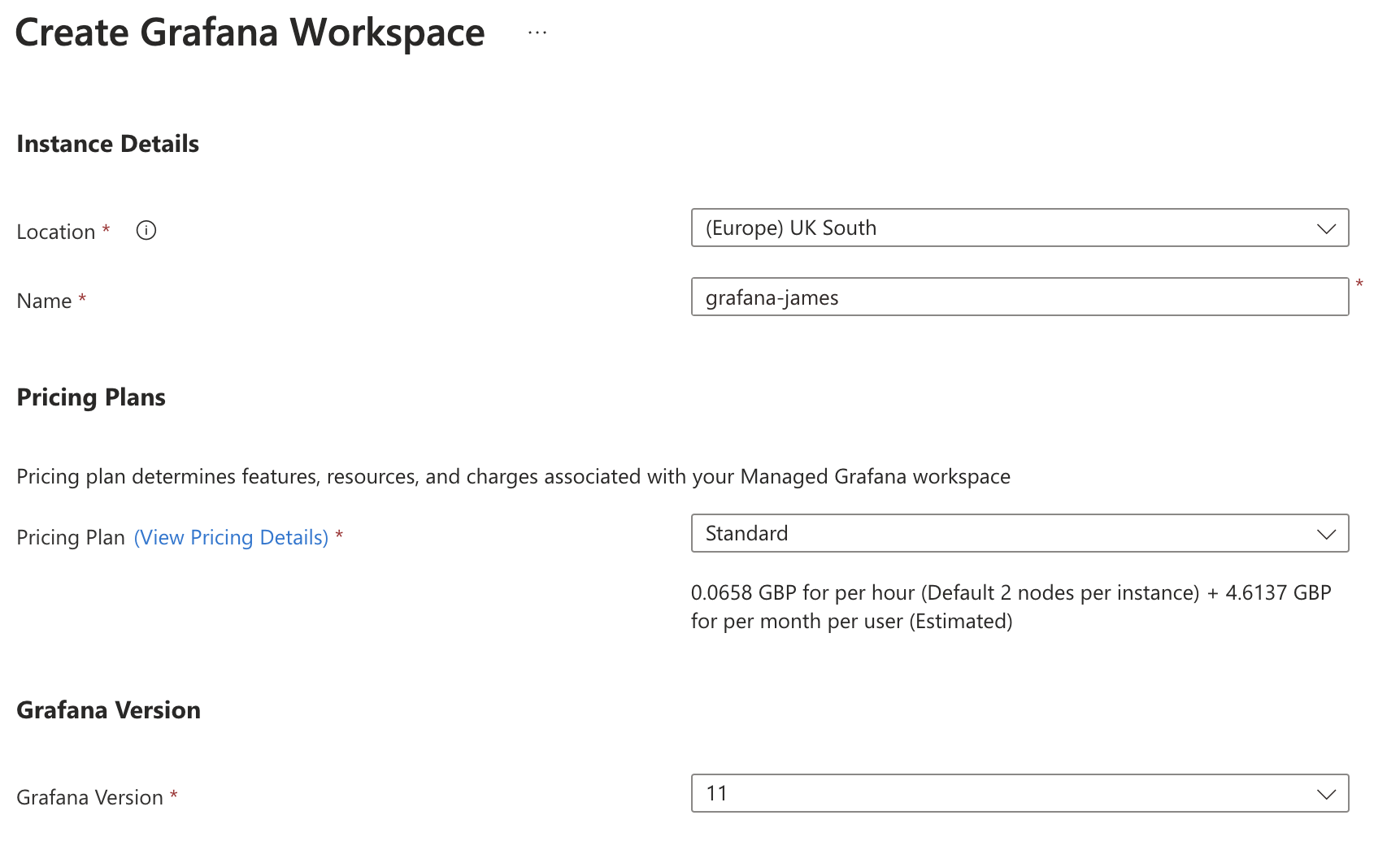
Set the location and name of the resource. The name must be unique, as it will be used to generate a URL. You can also set the pricing plan and Grafana Version you want.
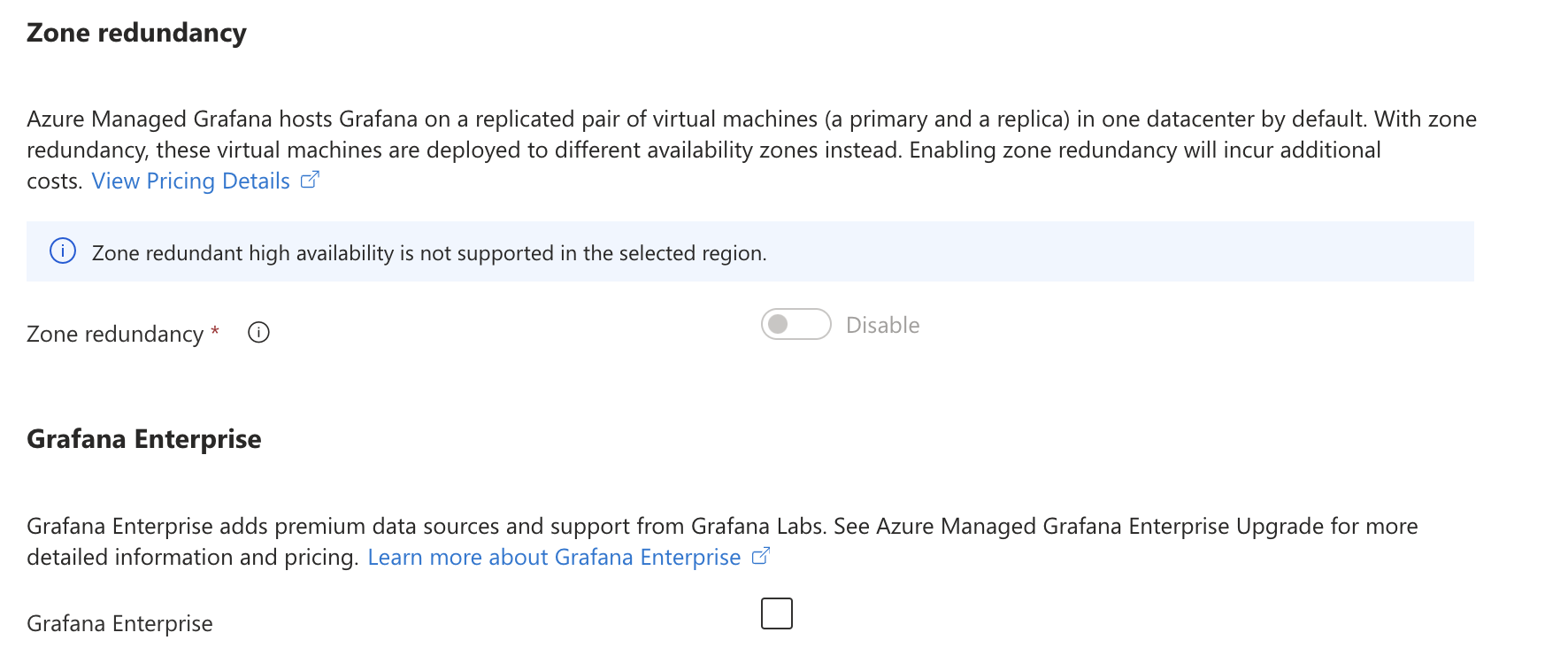
Further down, you can enable Zone redundancy, but this is only available in supported regions. If you are eligible, you can also allow Grafana Enterprise.
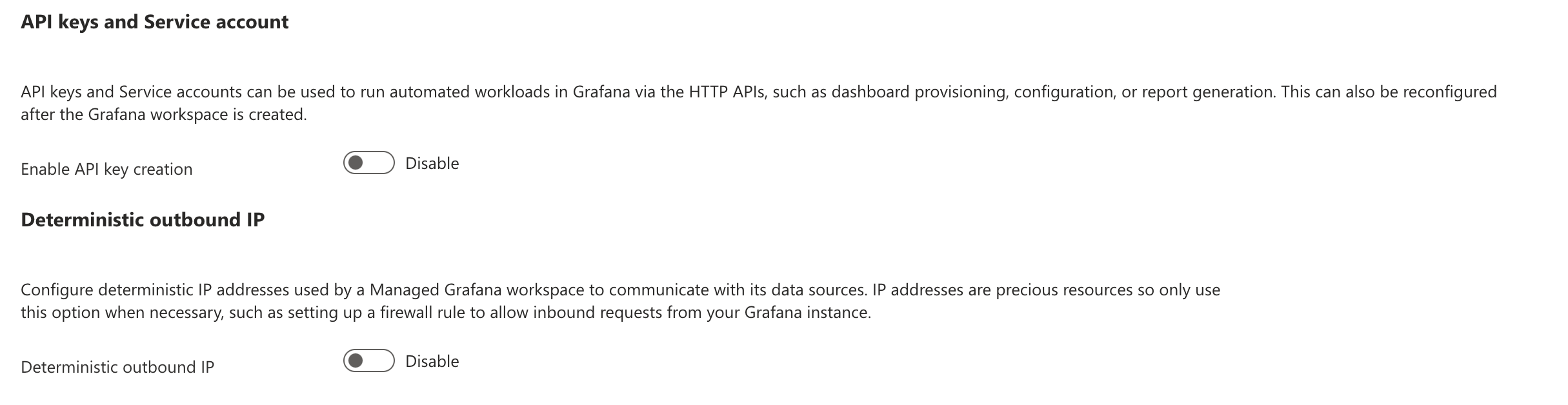
You can enable the API key on the Advanced tab, which is highly desirable when integrating with Grafana. You can also enable Deterministic outbound IP to provide your external data source with the IP address of the incoming source.
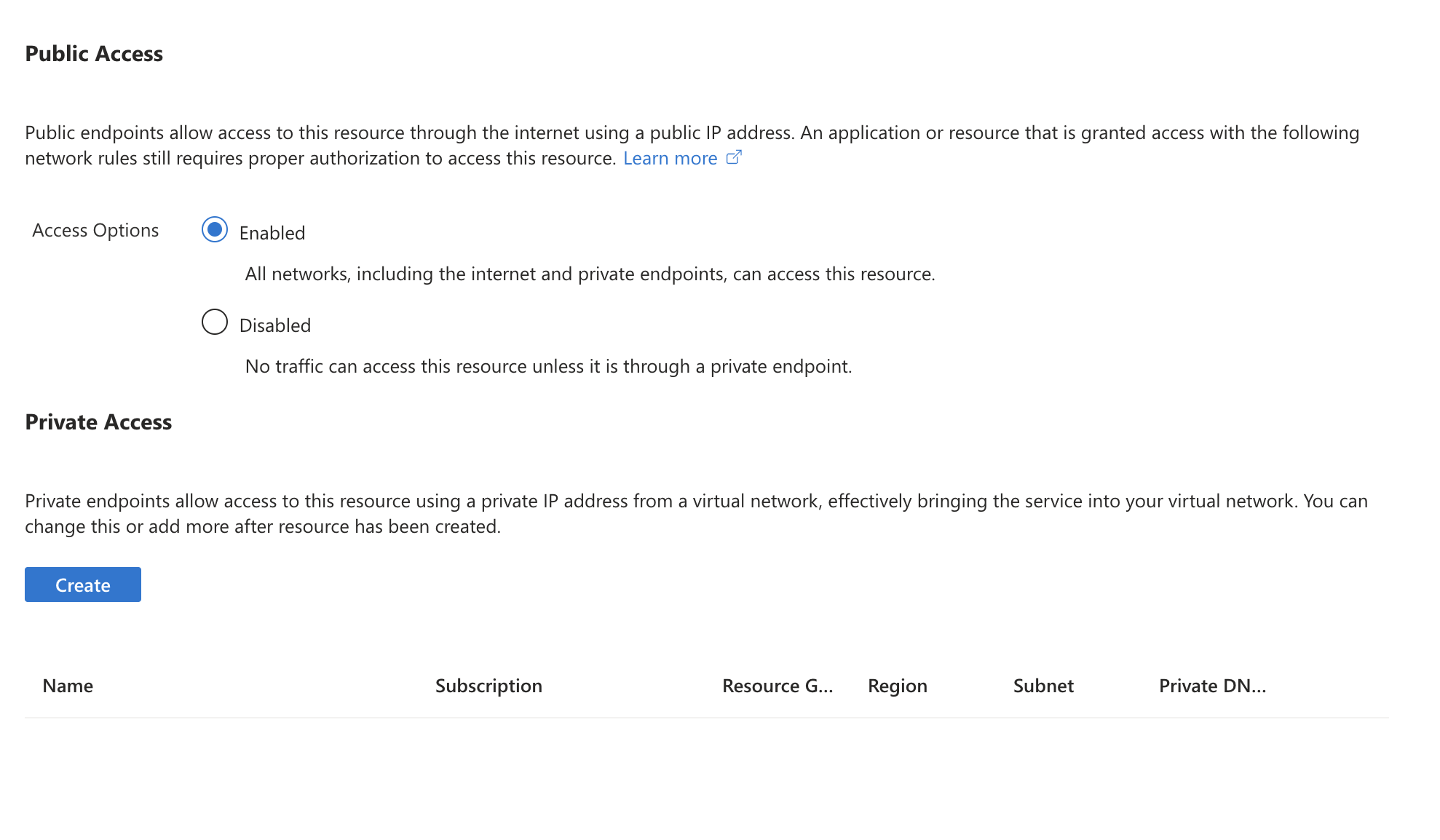
Within the Network tab, you can enable/disable public access and configure private access using private endpoints.
Once you are ready, select Create to start creating the resource.
Access the Grafana Instance
Once the resource is ready, open it. From the Overview page, you will see the endpoint value. This is the URL you can use to access the Grafana instance. Click it.

You will be redirected to the Microsoft authentication page. As the Azure Managed Instance utilises EntraID you authenticate and authroise access, you will need to use the creators accounts to authenticate.
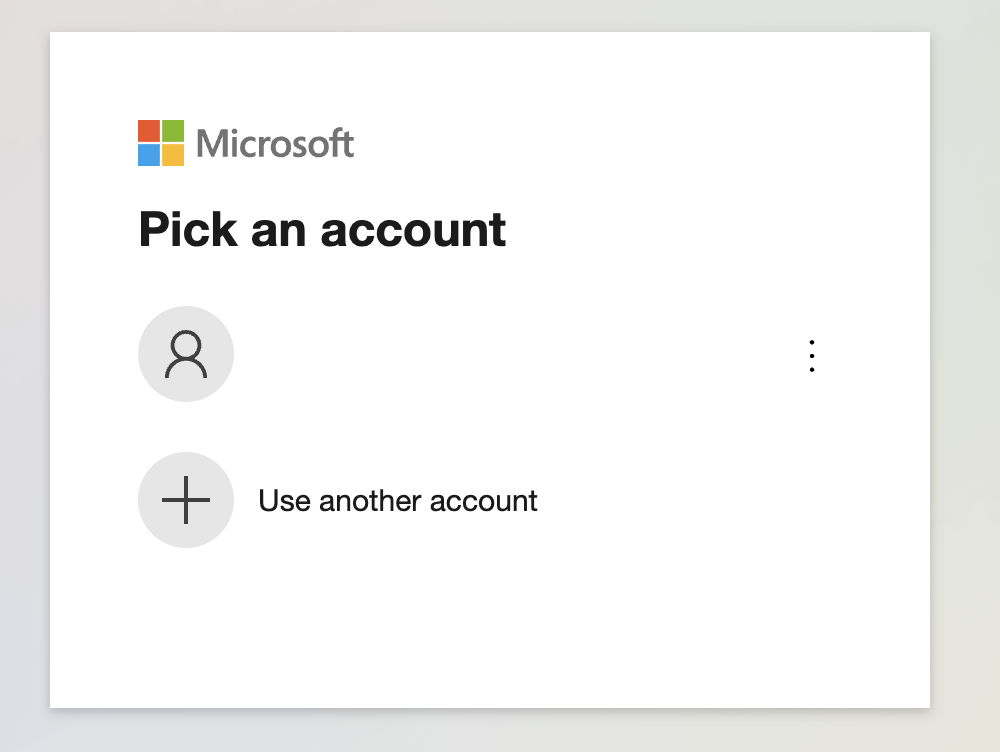
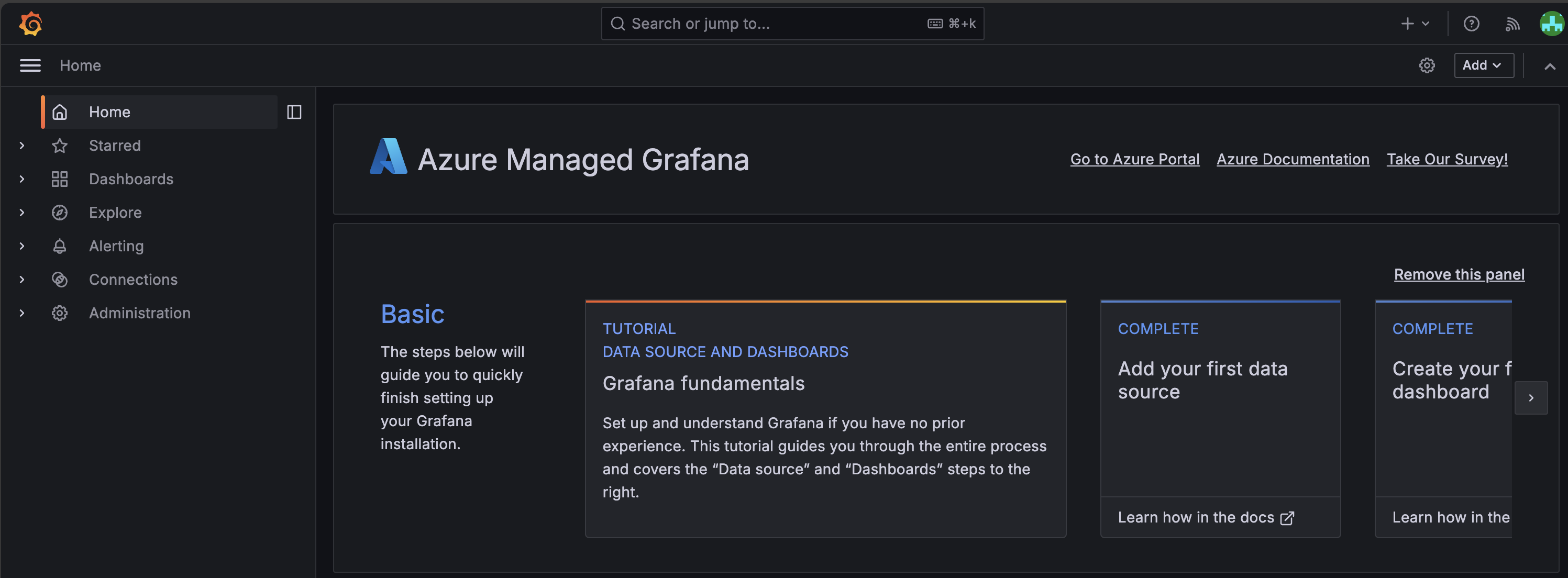
Once authenticated, you can start configuring and utilising your Grafana instance.
About the author
Executive technology leader responsible for platform reliability, cloud operations, security posture, and enterprise technology risk within an investor-backed fintech environment. I lead technology operations at the intersection of engineering execution, governance, and business outcomes — ensuring platforms are scalable, resilient, and trusted by investors, regulators, and clients.
Currently VP of DevOps at InvestorFlow, where I focus on building board-ready technology operations, strengthening risk and resilience, and shaping long-term platform strategy to support growth and regulatory confidence.
Comments
Join the discussionNo comments yet. Be the first to comment.


